The Vendors Module contains the information that can be used by property owners and operators to verify your credentials and contact your team. Maintaining an accurate and current profile is essential for a successful partnership.
The module features six key zones, as highlighted below, to help you navigate efficiently.
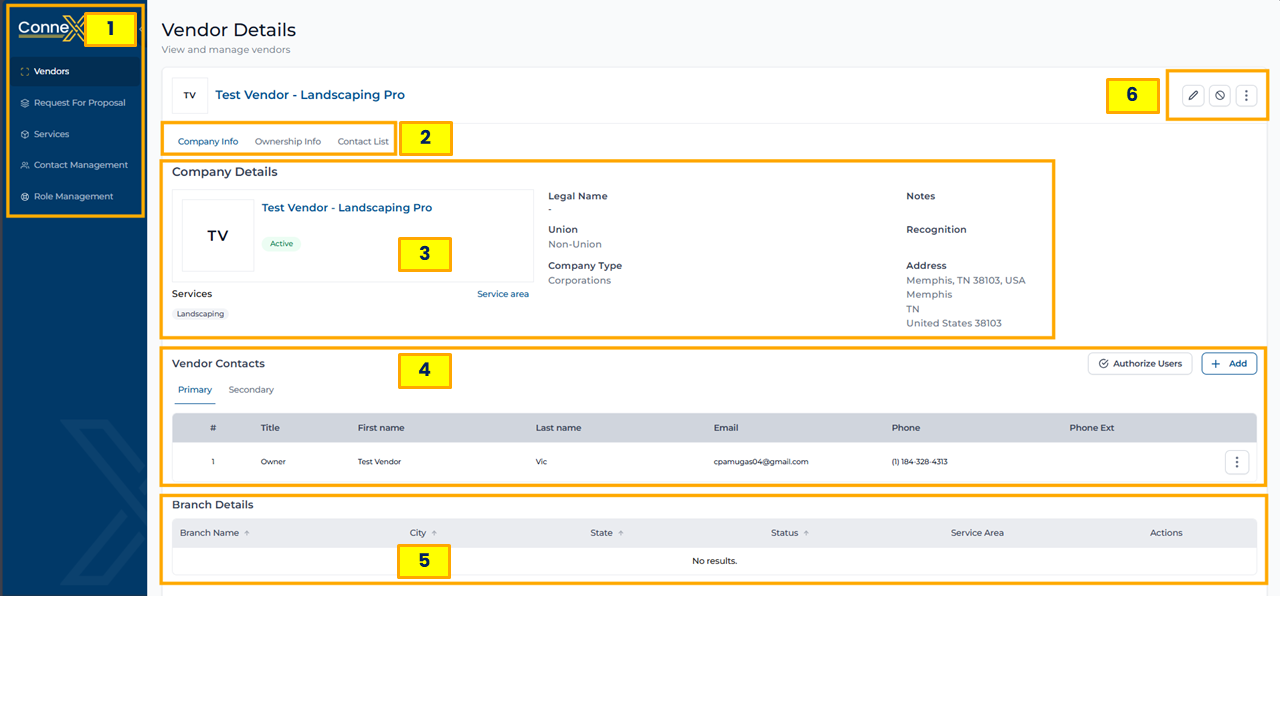
1. Main Navigation Menu
Located on the far left, this sidebar allows you to jump between the core modules of the application.
2. Profile Category Tabs: These tabs allow you to toggle between different layers of your business profile:
- Company Info: General business details (the default view).
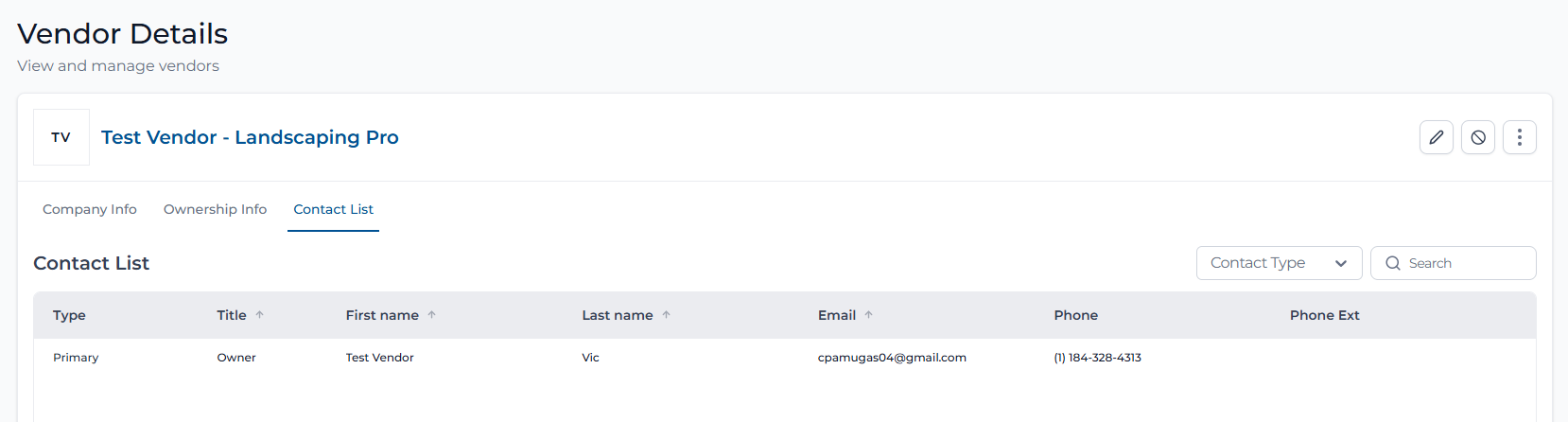
- Ownership Info: Ownership and insurance details.
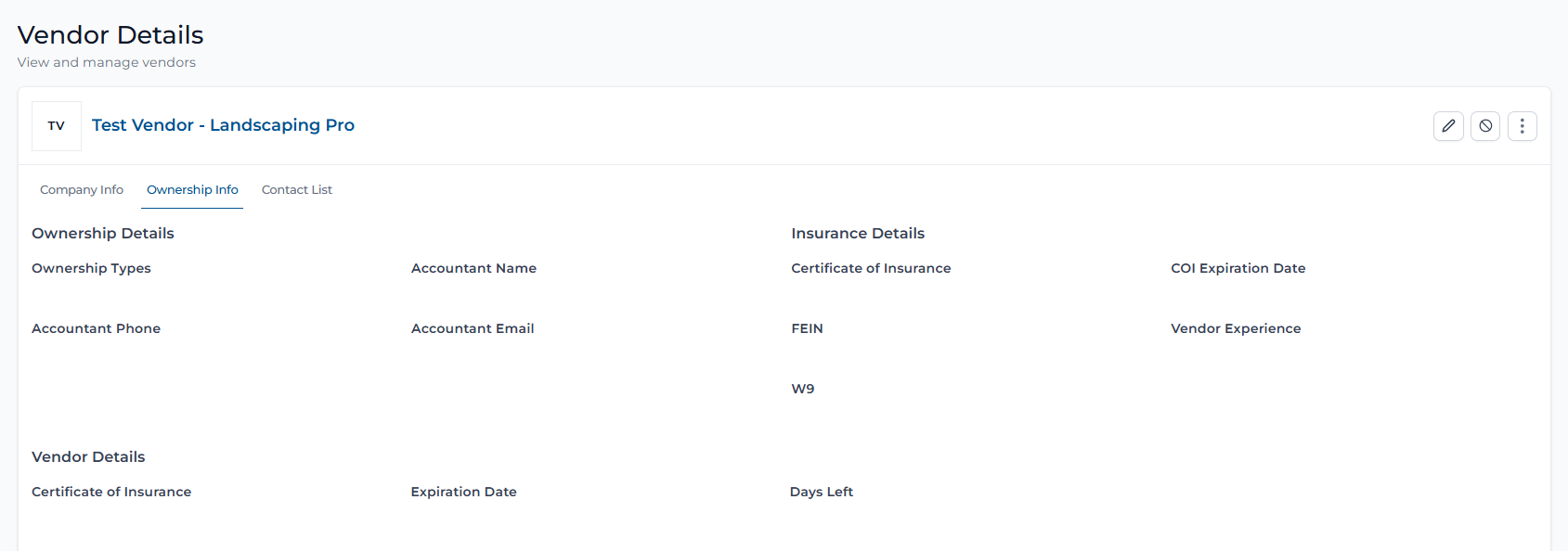
- Contact List: A comprehensive list of all individuals associated with your account.
3. Company Details (Core Info): This section displays your:
- Status: When “Active,” it confirms your account is live and visible to partners.
- Legal & Union Info: Shows your legal name and whether you are a Union or Non-Union company.
- Address: Your primary business headquarters.
- Services Summary: Provides the service/ services that your company provides
⚠️Critical Action: Service Selection for RFP Eligibility
To guarantee your team is notified of all relevant RFPs, you must select all individual and combined service categories that apply to your business. Our system uses specific logic for bundled services, for example, which are below:
Janitorial Services: If your company performs both fixed-rate work and unit turns, you must select BOTH "Janitorial > Fixed Rate" and "Janitorial > Fixed Rate and Unit Turns."
Landscaping & Snow: If you provide both landscaping and snow removal, ensure you have the following three services selected to appear in all searches: Landscaping, Landscaping and Snow, and Snow
Note: Property owners might filter RFPs by a single specific service. If you only have the "Combined" version selected, your company will not appear in their search results for the individual service. Always audit your service details to ensure every applicable service/s is checked.
4. Vendor Contacts & Permissions: Manage the people who represent your company here.
- Primary/Secondary Tabs: Switch between your main points of contact and backup staff.
- Authorize Users: Click this to grant specific team members login access. Once clicked, this proceeds to the Contact Management Module.
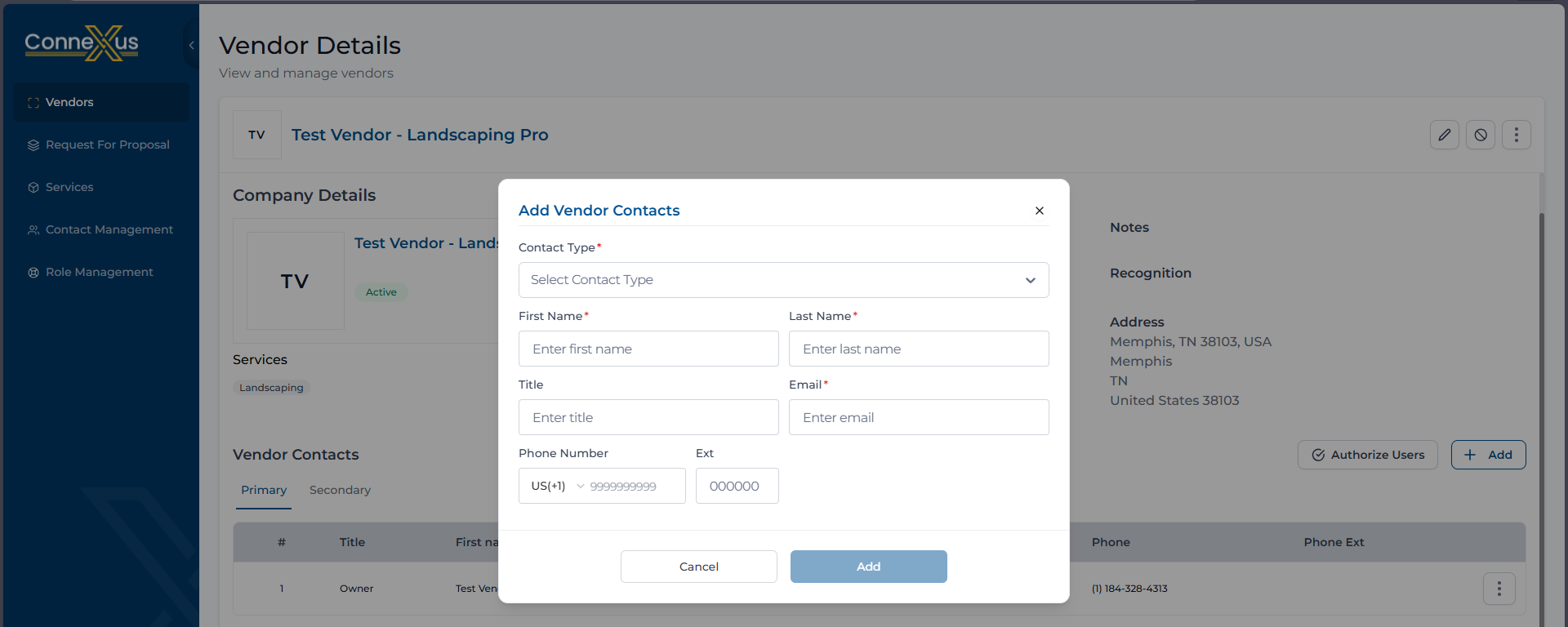
- “+ Add” Button: Use this to input a new team member's information.
5. Branch Details: If your business operates in multiple locations, they will appear here.
- This table shows the Branch Names, City/State, and Service Areas specific to that location.
- If this section says "No results," you can add branches via the "Edit" function to ensure you are matched with local jobs.
6. Action Tools: The icons in the top right corner are your primary controls:
- Pencil Icon (Edit): Click this to update any info in the Company Details, such as the company information, Contact details, service, and ownership details, separated into 4 steps. (Please check further instructions in the next page)
- Deactivate Account Icon: Used for deactivating your vendor account.
- Contact Management: Proceeds to the Contact Management Module
- Role Management: Proceeds to the Role Management Module
Was this article helpful?
That’s Great!
Thank you for your feedback
Sorry! We couldn't be helpful
Thank you for your feedback
Feedback sent
We appreciate your effort and will try to fix the article